Thursday, November 8, 2012

Forgot BIOS Password and BIOS clock that always Turned On

Problems forget the BIOS password is:

For computer security, the authors administered a password on the BIOS, but after some time using it, computer users will forget their password so that when you turn on the computer, you can not go into the operating system.
Troubleshooting the problem is:

Troubleshooting of Manufacturers MB unknown

The problem is:
The computer is having problems so we need to install the motherboard drivers. But it is not known motherboard manufacturers so difficult to get the right driver. Not found on the manufacturer's label the boards.

The solution is:
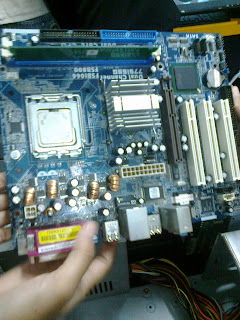
In general, there are four ways to find out the manufacturer of the motherboard installed on your computer.
The first, open your CPU and check cashing. A motherboard usually has a manufacturer's label that also contains the type of motherboard specifications. These labels are usually printed with a small hidden location.
Another way is to look at the motherboard manual handbook. Hopefully you still have the book.
If the label and the book is not found, try to search the internet. Some motherboards do not include manufacturer's label on boardnya. It's as seen pasa OEM motherboard. But you can track the motherboard manufacturer to match the ID number printed on the sticker board denan tapat list on the site www.fcc.gov / oet / fccid. kesitus try to go and find a list of ID numbers dikeluarakan by the licensing agency for electronic devices in the United States.
The last way is to use software such as system analysis SANDRA 99. This tool is able to detect the motherboard specifications and the manufacturer pretty well.

Troubleshooting Computer Often Crash

Problems that arise are computer life, but it is not being used for the activity, the PC suddenly crashes. Konsisi such phenomenon was common and diverse as resert immediately, hang or freeze.
The solution of the above problems are some of the things causing events such as the above conditions. Try to trace the mistake Checked techniques as follows:


  1. In this condition die computer, disconnect all power and remove the cover (cashing) PC.
  2. Check all connections and cables are plugged into the motherboard. Does each have stuck it right?
  3. Check also the position of RAM, VGA. Card, Sound card, and processor. If it is not correct, press carefully to position the right place.
  4. Voltage at cashing contacts can also cause interference. Loosen the screws on the back of all the cards on the back of cashing. Sometimes the cards are curved backrest can also cause stress on cashing.
  5. Often carsh computer because the CPU temperature is too high so that the heat generated becomes redundant. Check that the fans are there. Check if it still works fine, do cleaning in the fan with a brush.
  6. If the various Checked above was to no avail, the last step is to do with the exchange Checked adapters, RAM or processor to another. Damage to a specific adapter will be difficult to be convincingly analyzed. Moreover, if the physical adapter is in good condition. This is because modern adapters will switch off all channels pengechekan on almost all types of errors. The only way is to swap the old adapter with other adapters and then observe the change.    

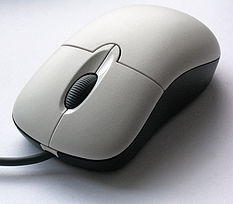
Pointer Mouse caper

Problems often arise when the mouse is moved, the mouse pointer randomly jumping up and making it difficult to use the mouse properly and precision.
The solution to the problem this time is that in these conditions, most likely due in large component dirty mouse ball. Components of the mouse ball is in contact with the mouse pad which is not always clean. Perform the steps below:

  1. Go to the bottom of the mouse ball cover by turning it 90 degrees. Remove the ball and clean it with warm water and a brush if it is immediately dried.
  2. On the inside of the mouse you can observe the three wheels. Two large wheels and one small. Padakomponen dirt needs to be cleaned. Likewise, the dirt on the gears and ball bearings. Perform cleaning it carefully so as not to damage the components inside. 

Unknown Computer Mouse

Problems arise yan: at boot time, the computer raises the message that windows does not detect the mouse connected to the computer.
Solution of the problems above message means that during the boot process, Windows does not detect any mouse connected to the computer. Some errors can occur and cause the mouse not detected by the Windows operating system. The possibilities are, among others, as illustrated in the following analyzes.

Tips on Choosing and Caring Keyboard

If you are planning to buy a new keyboard may be some things below you can make a material balance.
  1. Customize your keyboard type to the type of ports available on your CPU box. Be careful because there are two types of keyboard port serial port adapter with AT and PS 2 port with 9 pin, a keyboard with no bias port type is replaced with another type keyboard port.
  2. Some types of keyboards made ​​with the latest ergonomic model with the aim to adjust the natural conditions on the fingers while typing. But not choose first determine whether ergonomic shape for someone else may not be suitable for you.
  3. Do not luoa to try the keys or the keyboard buttons pasa. Choose a soft (usually better if you choose the keys of the keyboard is not too high), so it feels good when used for typing. 

Friday, November 2, 2012

Unknown Computer Keyboard

Problems: 
At the time of the boot process, the computer suddenly freezes and the message "Keyboard error or keyboard present on".